
Troubleshooting
General Tips
- If you are having issues, restart the device before trying again.
- Close any unnecessary applications and tabs.
- Disable ad blockers, privacy extensions, antivirus and browser plugins during the session if possible
- Attempt to use another installed browser if you are having issues.
- Keep your OS and browser updated
- Ensure hardware acceleration is enabled:
-
Chrome:
chrome://settings/system> Enable Use hardware acceleration when available - Firefox: Select the menu button (three horizontal lines) in the top right corner and select Settings. Then, navigate to Performance: In the left-hand column, select General and scroll down to the Performance section. Disable recommended settings: Uncheck the box next to Use recommended performance settings. Finally, check the box next to Use hardware acceleration when available.
- Safari: As of MacOS Catalina, you are no longer able to turn hardware acceleration on and off in Safari.
-
Chrome:
More Steps to Try
-
Disable Virtual Background
- Background effects consume processing power; disable them to reduce load
-
Verify System Settings
- Windows: Go to Settings → Privacy → Camera
- macOS: Go to System Settings → Privacy & Security → Camera
- Ensure the browser has access to the camera
-
Close Other Telehealth Apps
- Close Zoom, Teams, Skype, OBS, etc., which may be locking camera or microphone access
-
Try Another Browser
- Chrome is recommended, but test with Edge, Safari, or Firefox to rule out browser-specific issues
-
Check for Hardware Conflicts
- Restart the computer to release camera access
- Unplug/replug USB cameras if applicable
-
Try Incognito Mode
- Disables extensions that might interfere with camera or microphone access
-
Check CPU Usage
- If CPU is running over 90%, video processing might fail
- Close heavy apps or tabs (video editors, Google Meet, cloud sync, etc.)
-
Use an External Webcam
- Built-in webcams may be incompatible with background features or simply outdated
Why can't I join my Telehealth session?
If the button to join your Telehealth session is grayed out or not selectable, this can be due to a number of factors. The first is the time. Please note the Join button is only activated up to 30 minutes before the start time of the session, and stays active until 30 minutes after the end time.
If it is the correct time to join, but you still cannot select Join, please check the following:
- Time Zone: Please ensure your device's time zone matches the time zone you have set under Practice Details in the Settings section. For clients, their time zone does not need to match, but they do need to consider the time difference to ensure they are connecting at the correct time.
- User Access: Only the assigned Therapist (and Supervisor, if applicable) and Client(s) can join the session. If you are logged in as a different Therapist, or as an Admin user, you will not be able to join that session.
Why isn't my camera/microphone working?
When you first enter a Telehealth session, you will see a message to let you know if your camera and/or microphone is connected. If they are connected, you will see a preview. If they are not connected, please be sure you have given your browser permission to use these devices.
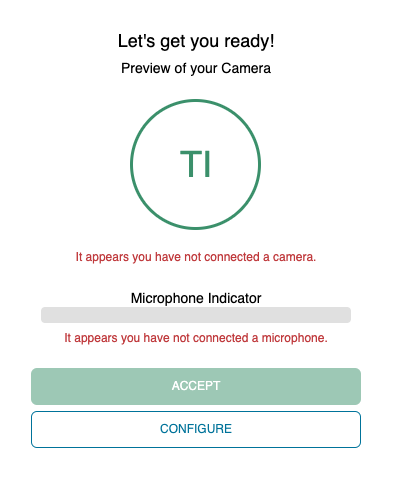
To do so, you may need to click the icon in your URL bar of your browser, and manage your permissions as needed. You may need to select the Manage button to see further settings. Once you have allowed permission, these settings will be saved for any sessions going forward.
Please note that the following screenshots are for Chrome, but the process should be similar for most browsers.
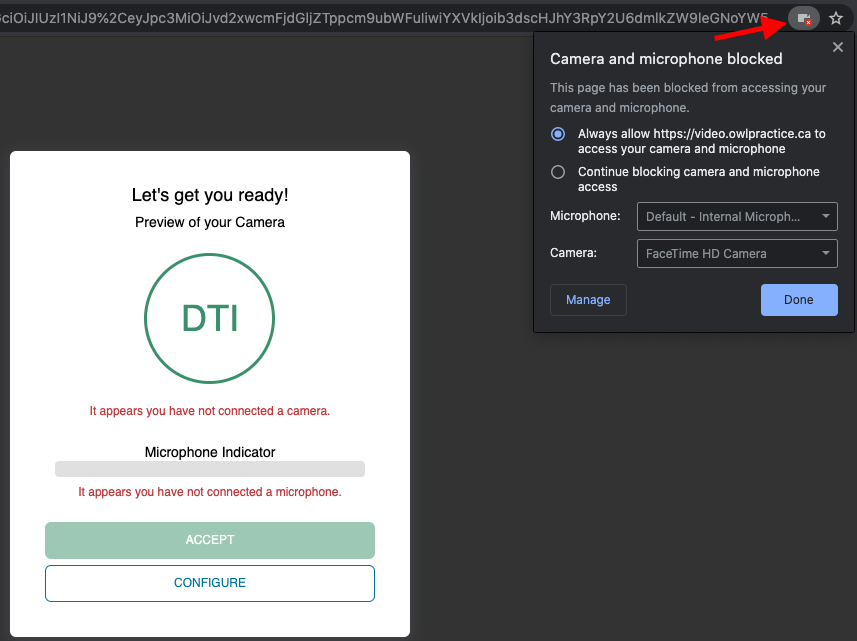
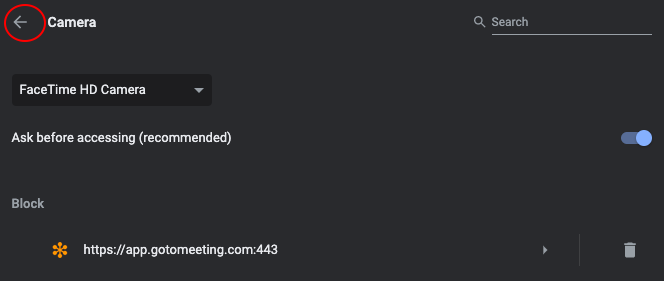
You'll be directed the Google Chrome Settings to view which sites have not been allowed Camera access. Be sure that video.owlpractice.com is not blocked, or remove the block using the trash can icon. Then click on the little arrow.
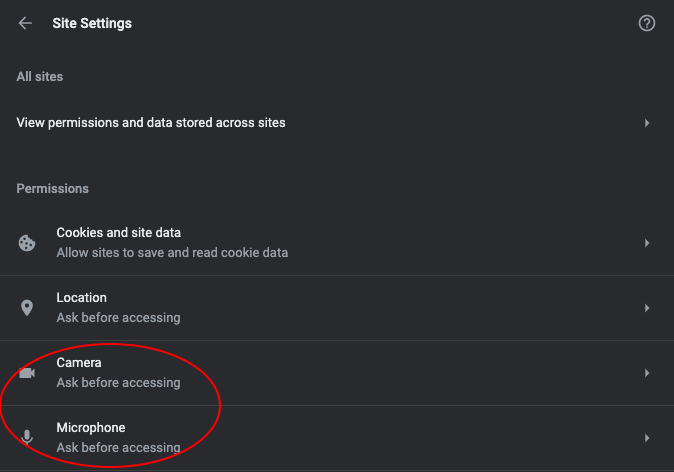
You'll be taken to the main Permissions page. Next, click Microphone, and do the same as you did for Camera.
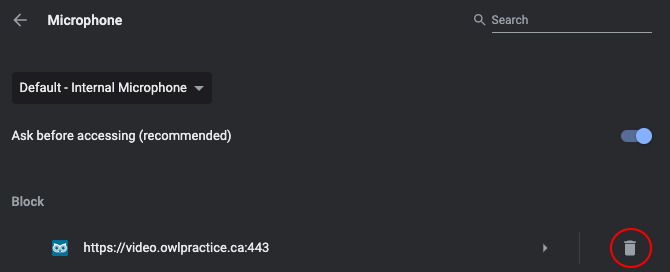
Once permission is granted, you can return to the Telehealth page. Refresh the page and try connecting again. On the top right of the same page, you'll see a pop-up window prompting you to allow permission for Owl Telehealth to user your microphone. Select Allow.
If you have multiple cameras or multiple microphones connected, please ensure you use the device selector to use the device of your choice by selecting the Configure button.
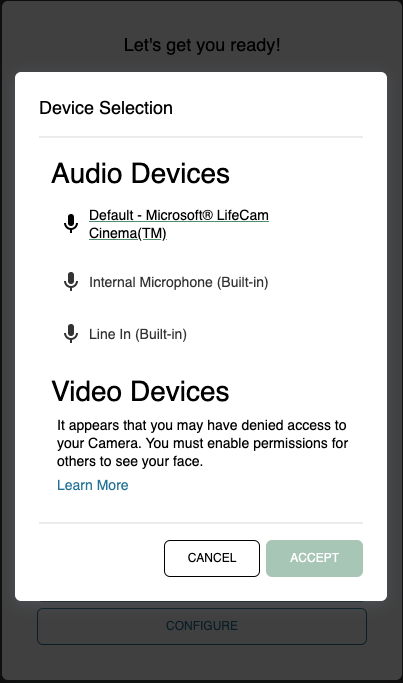
When you have your microphone and camera set up, select Accept to enter the session.
Other Possible Causes
- Another app (Zoom, Teams) is using the camera
- Privacy-focused browser extensions or antivirus software interfering
- Hardware malfunction (camera unplugged or broken)
- Low system resources or high CPU usage
- Virtual background feature overloading an older device
- Incorrect camera selected in browser
My Microphone and/or Camera stopped working during a call
We have received reports from customers where their microphone and/or camera was working at the beginning of the call, and then suddenly stops. This can happen when using Apple devices due to a feature called "Continuity", wherein your microphone and/or camera will spontaneously switch to another device, such as iPhone or Airpods. There are ways to prevent your audio and video devices from automatically switching in your apple device settings, described here.
Why can't I see any Telehealth options in my account?
Please note that Telehealth is only available on Pro and Group Plus Telehealth plans. If you are on a Starter or Core solo plan, or a standard Group or Group Plus plan, you will not see any Telehealth options. Please contact support if you would like more information on upgrading.
Why can't I screen share?
Much like the camera and microphone, your browser does need permission in order to share your screen. If you are not able to share your screen, you likely need to edit your permissions. Here are the steps you can take (these are for Chrome on Mac specifically, but a similar process would work for most):
- Go to System Preferences, then Security and Privacy
- Select Screen Sharing / Screen Recording, and ensure Chrome is checked off as enabled
- Quit and restart Chrome
You should now be able to successfully share your screen. Please note that screen sharing is not available on mobile devices.
Before using Owl Telehealth, make sure that you and your client meet the following minimum hardware and software requirements for the best experience.
Required Hardware Peripherals/Accessories
When using Owl Telehealth, ensure that you and your clients have the necessary hardware components. This includes a device for audio output, such as speakers or headphones, a microphone if anyone will be engaging in voice chat, and a working camera or webcam to facilitate video communication.
- Audio (Speakers/Headphones)
- Microphone (optional)
- Camera (optional)
Supported Operating Systems
- Windows 10
- Windows 11
- macOS 11+
- Android OS 8+ (+OpenGL ES for screen sharing and Google Services and Account for Messaging)
- iOS 16+
- Ubuntu 16.0.4
- Chrome OS 130+
Desktop Browsers
- Firefox 130+
- Chrome 130+
- Chromium-based Edge 130+
- Chromium-based Electron 7+ (w/Chrome 78+)
- Opera 66+
- Safari 17+
Mobile Browsers
- Firefox 10+
- Chrome 78+
- Safari 15+
- Samsung 12+
Note: While these versions are the minimum supported, we recommend keeping your Operating System and browser updated to the latest version to enhance performance and to reduce security risks.
Device Requirements
CPU/Processor
At least a Dual core 2Ghz+ processor or higher.
Memory
At least 8GB+ of RAM or higher.
Note: Kindle Fire explicitly not supported.
Network Requirements
Audio
- 1:1 calls: 54 kbps up and down
- Larger calls: no more than 32 kbps extra down for 50 callers
Telehealth
- 1:1 calls: 650 kbps up and down
- HD mode: 1400 kbps up and down
- 3–4 people: 450 kbps up and 400 kbps down
- 5–16 people: 184 kbps up and 134 kbps down
- Up and down bandwidth adapts lower based on network conditions
You can test your bandwidth with tools such as the Ookla Speedtest, the Google Internet Speed Test, or Bandwidth.net.
Screen Sharing
- 2 mbps up (when presenting) and down (when viewing) for high quality. This adapts as low as 320 kbps based on network conditions.
- Remote control: 800 kbps fixed rate required.
Note: The ability to share screen is not supported on mobile devices.
Device Performance Disclaimer: If your device is older than 5 years or only meets our minimum requirements, performance may vary. Open applications, heavy tab usage, and overall system health can impact your experience. We recommend closing background apps or upgrading your hardware for optimal performance.