
Searching for Therapists using TherapyOwl as a Client
Therapy owl is a tool that allows you to find and get in contact with a suitable therapist that meets your needs. Get started by heading to therapyowl.ca.
Finding a suitable therapist
TherapyOwl allows prospective clients to search for therapists in any desired location. You can also configure your search results to find therapists that focus specifically on various clinical issues/clientele options.
To begin your search on the homepage, enter the location in which you would like to locate a therapist in close proximity to. The search bar looks something like this:

You can select a Specialty to better define your search results. Once you have entered in the location you would like to search around, select the Search button to view the results.

This results page will display a list of therapist cards that can be scrolled through on the left. There is also a map with pins representing these therapist results that you can select on the right. You can visit the profiles for these therapists by selecting their therapist cards or the pins displayed on the map. You can also move the map and zoom in or out to render more search results. As you outline an area on the map, you will find all the therapists we list associated to that area. Once you find a therapist of interest, all you need to do is get into contact with them.

Getting in contact with a therapist
On therapist profiles, there are different ways in which you can get into contact with them. Here you will be able to see their practice Phone Number, their practice Address, Email Address, as well as their Website. To email a therapist directly, select the orange Email button located on the left of the profile page.

Here you will have to enter your information as well as the email address you would like the therapist to contact you at. Select the blue Send Email button once you have completed all the fields.

Getting Started Guide for Therapists
To create your profile, first select Therapist Options in the upper right hand side of the website, and then select Create Free Listing.

Then choose your specialty from the following list:

Finally, enter your Email and desired Password, then select Create Account.

Logging In as a Therapist
To log in as a therapist, first select Therapist Options in the upper right hand side of the website, then select Therapist Login.

On the log in screen, enter your email address and password and then select the Login button. If you have forgotten your password, select Click here to reset.

Configuring your Profile
Now that your account is created, you will need to input all the information about the types of services you offer. In order to catch the attention of potential clients, we recommend making your listing as detailed and client-oriented as possible.
You can edit your TherapyOwl listing in two ways:
- Using Tutorial mode to set up your profile
- Manually Editing your listing
Once you have set up your profile, you are two steps away from having your listing published for clients to see:
- Understanding your Publication status
- Getting your account Verified and Published
Using tutorial mode to set up your profile
When you have completed the signup process by verifying your email address, you are then taken directly to your profile page where Tutorial mode is enabled. You can disable this mode at any time by opening the Step Menu at the bottom of the page and selecting the orange Close Tutorial button. The Setup Progress menu looks something like this:

You can toggle back to tutorial mode at any point when logged in. To do this, select the blue and white Tutorial button at the top right of your profile page. If you choose to navigate away from the tutorial page midway, you will be taken back to the same step you were on to complete your listing when selecting Tutorial again.
When setting up your profile in tutorial mode, you will be taken through a series of 13 steps to complete. To begin the tutorial, select the green Start button on the tutorial popup.
Note: Steps with an asterisk next to them are mandatory to be completed in order for your profile to be published.
- Profile Picture*
- Profile Header
- About*
- Email*
- Website
- Education*
- Experience*
- Association
- License*
- Client Focus*
- Treatment Types*
- Clinical Issues*
- Service Types*
Once you are satisfied with the information in each section you are working on, select the green Next button to move to the next step. If you would like to go back to a section within the tutorial, you can do so by opening the Step Menu at the bottom of the page and selecting the orange Previous Step button. You can also skip through sections by clicking the green Next Step button in the Step Menu, or by manually selecting a section within the menu.
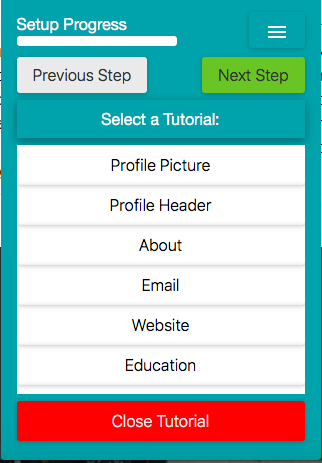
If you choose to not set up your profile by using our tutorial, or would like to make changes to one specific section, you may do so by editing your profile manually.
Manually editing your profile
Users can manually edit their profile at any time when logged in. To enable this editing mode, simply click the blue Click to Enable Editing bar at the top of your profile page. This bar looks like this:

Once you have enabled this mode, hover over any section of your profile you would like to edit and select the blue Edit button that appears. When you have completed entering the new information select the green Save button for the changes to be saved. Select the grey Cancel button if needed.
After you have completed inputting information in all the required fields, you are ready to have your publication status reviewed.
Understanding your Publication status
Your publication status informs you of where your profile is in the process of being listed. This status can be seen in the grey bar at the top of your profile labeled Publication Status. This bar looks something like this:

If your publication status says Incomplete, it means there are mandatory fields on your profile that are not yet completed. To see what these fields are, simply select the grey Publication Status bar for a drop-down checklist to appear. This checklist will identify which fields are yet to be completed.
If your publication status says In Review, it means you have successfully completed all the required fields! This status indicates we are checking over your profile to verify its content.
Getting your account verified and published
Once all the required fields have been completed on your profile, our team steps in to verify the information you have listed. In order to legitimize the credibility of the therapists we list, we require all profiles to be reviewed in detail before we release it to the public.
As soon as we publish your listing, we will email you to notify you of this. You can confirm this by checking to see if the grey Publication Status bar is no longer present.
Frequently Asked Questions
How do I delete my TherapyOwl account/listing?
At this moment in time, we cannot entirely delete therapist profiles. What we can do however, is unpublish profiles which will not allow any users to be able to search for you. If you choose to take down your listing, please contact support.
Can I use one email address for multiple user accounts?
Only one email address can be used per account. That means if you choose to have multiple therapists from a single practice signup with TherapyOwl, each individual must have their own unique email address. There may only be one listing per therapist.
What contact information should I list on my profile?
Any contact information listed on your profile such as Address, Email, Phone Number, Website, etc. should be specific to your area of practice. This is information that the general public will see and use to get into contact with you.
Note: You can change the information you list here at any time.
How do I list my entire practice address?
To begin entering your practice address, start by typing in the street address. Once the street address is entered, a drop-down menu will appear with more specific location information. At this point, you can select the region, postal code, and country specific to your area of practice. There is a second address line where you can enter additional information such as suite/apartment information.
What is the cost associated with having a TherapyOwl listing?
TherapyOwl is currently free. There are no hidden costs or fees that can be charged to you for using this service.
How long will it take for my profile to be verified and published?
Once all the required fields on your profile are completed, and your Publishing Status says In Review, it will take approximately 24-48 hours for your profile to be verified and published, upon which you will receive an email notification.